

AstroAssistant is a Windows application that helps you choose what to image on any given night of the year from your location, and to decide which of your equipment configurations is best suited for the job. The ‘Standard’ version is available to download and use free of charge, and includes lots of useful features. Once installed, it can be upgraded at any time to the ‘Pro’ version, which adds some really nice additional capabilities, for a small one-off payment.
Background
AstroAssistant came about because I wanted to build up a list of all the targets that might be interesting to image, and to figure out when was the best time of year to image them from where I love. I started with a simple spreadsheet, but with my background in C++ programming it soon evolved into a dedicated Windows application which developed more and more features as time went on.
I have written other applications and then not really used them much, but I now use AstroAssistant in every astrophotography session I do. For this reason I believe that others will find it useful too. It sits very nicely alongside NINA (for equipment control and image sequencing) and PHD2 (for autoguiding) which, by the way, are both fantastic! I almost always use two monitors during my astrophotography sessions, with NINA on one screen and AstroAssistant on the other.
Now at this point you may be wondering…is this pretty much the same as Stellarium? Well that’s a very sensible question. AstroAssistant has a lot of similarities with Stellarium, but also some important differences, including the development of your own target database using images of your choice, and the down-selection criteria that help you decide what’s best to image.
Key Features of AstroAssistant
The key features of the ‘Standard’ version are as follows:
- Build up a database of targets that you are interested in imaging – use your own images in the database, or other people’s
- More than 150 objects, plus the Sun, Moon and major planets, are included when you install AstroAssistant, to get you going. I’ve used a lot of my own images, but you can change them to yours if you want to.
- Find out which targets can be imaged from your location on a given date
- Define your own local horizon so that obstructions are taken into account
- Define your equipment setup
- Narrow down your choice using four adjustable criteria
- Mark targets as ‘favorites’
- Plot the trajectory of a target across the sky through the night in question
- Helps you can see at a glance when the best time is to image the target
- Find out when the best time of year is to image a target
- See at a glance which months of the year a given target is best imaged, using the Year Planner feature
- Find out how your equipment configuration(s) will frame the target
- Interactive ‘pan & rotate’ of the imaging frame over the image
- Solar System Model
- This helps you understand the movement and positions of the planets and provides dates for the next oppositions of Mars, Jupiter and Saturn
- Find out how far a target is from the moon (in angular terms across the sky), and what the moon’s phase is
- Helps you to avoid moonlight ‘washout’ of your images
See AstroAssistant in Action!
I have published a video to demonstrate AstroAssistant. It can be found on my YouTube channel using the link below:
< INSERT LINK TO YOUTUBE DEMO VIDEO HERE>
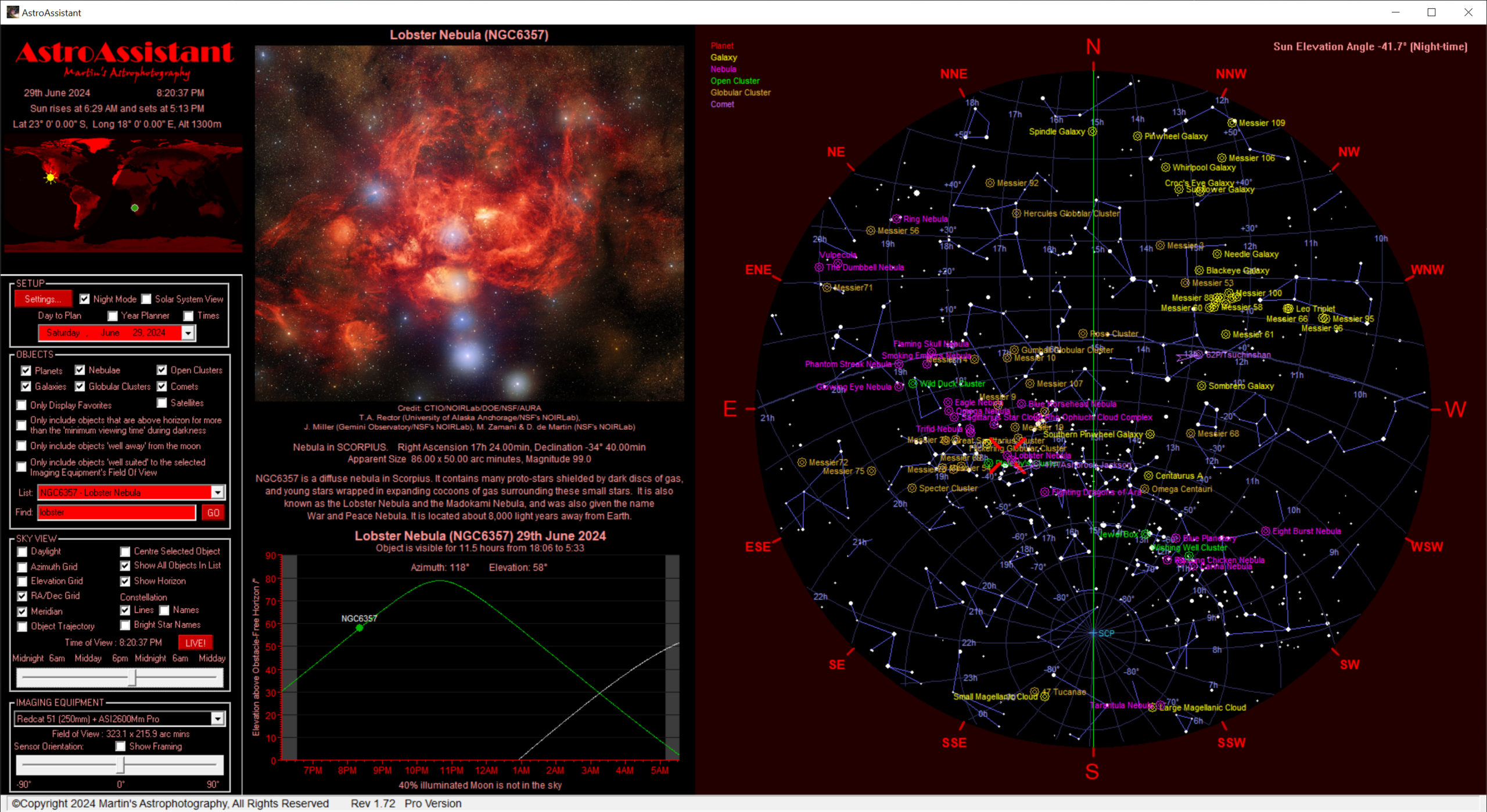
Sky View (in Night Mode)

Target Trajectory (in Day Mode) with Custom Horizon
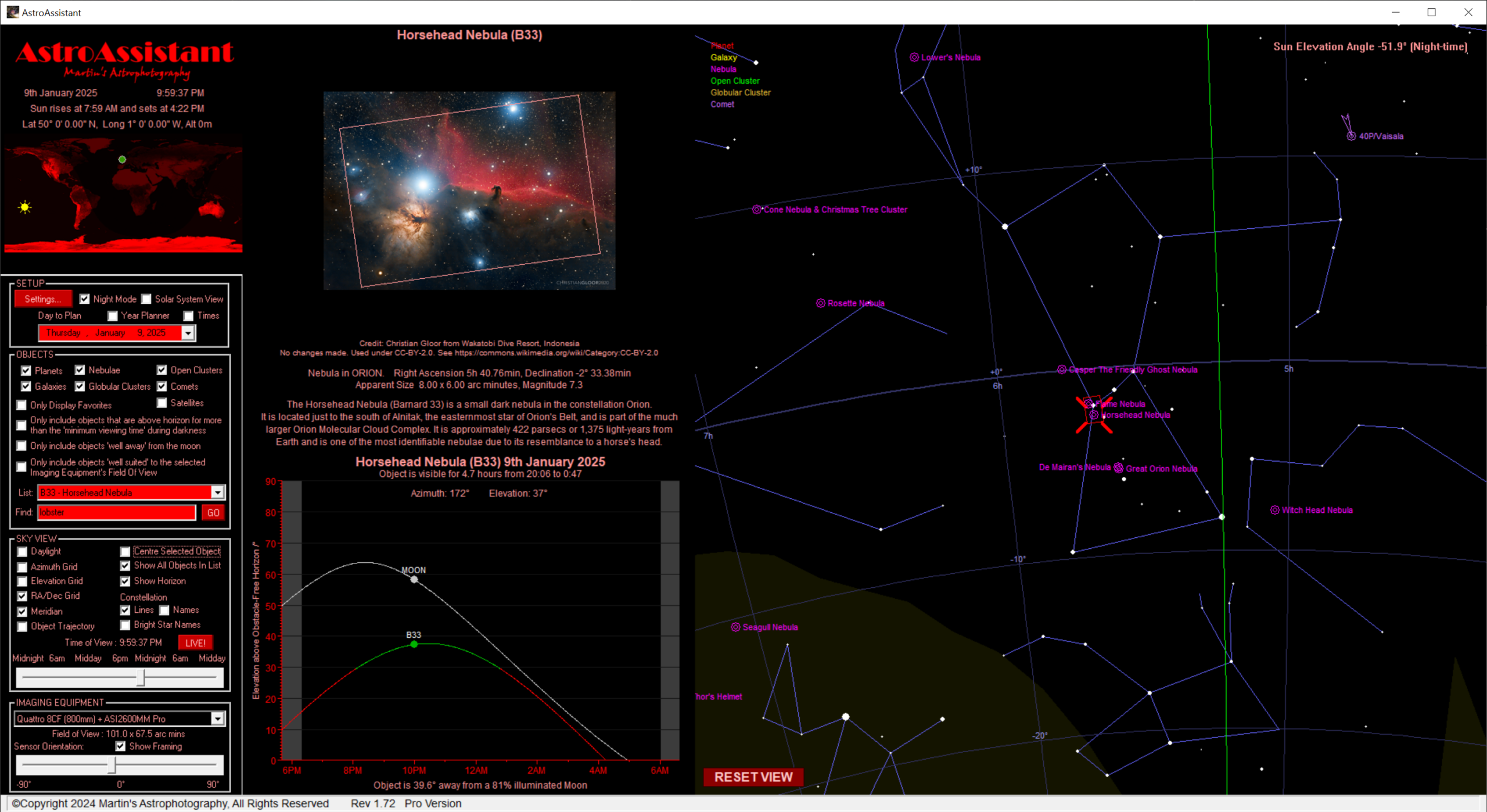
Target Framing (in Night Mode)
Inner Solar System View

Telescope Control via ASCOM (Pro Version)
Comets (Pro Version)

Satellites (showing an ISS pass)
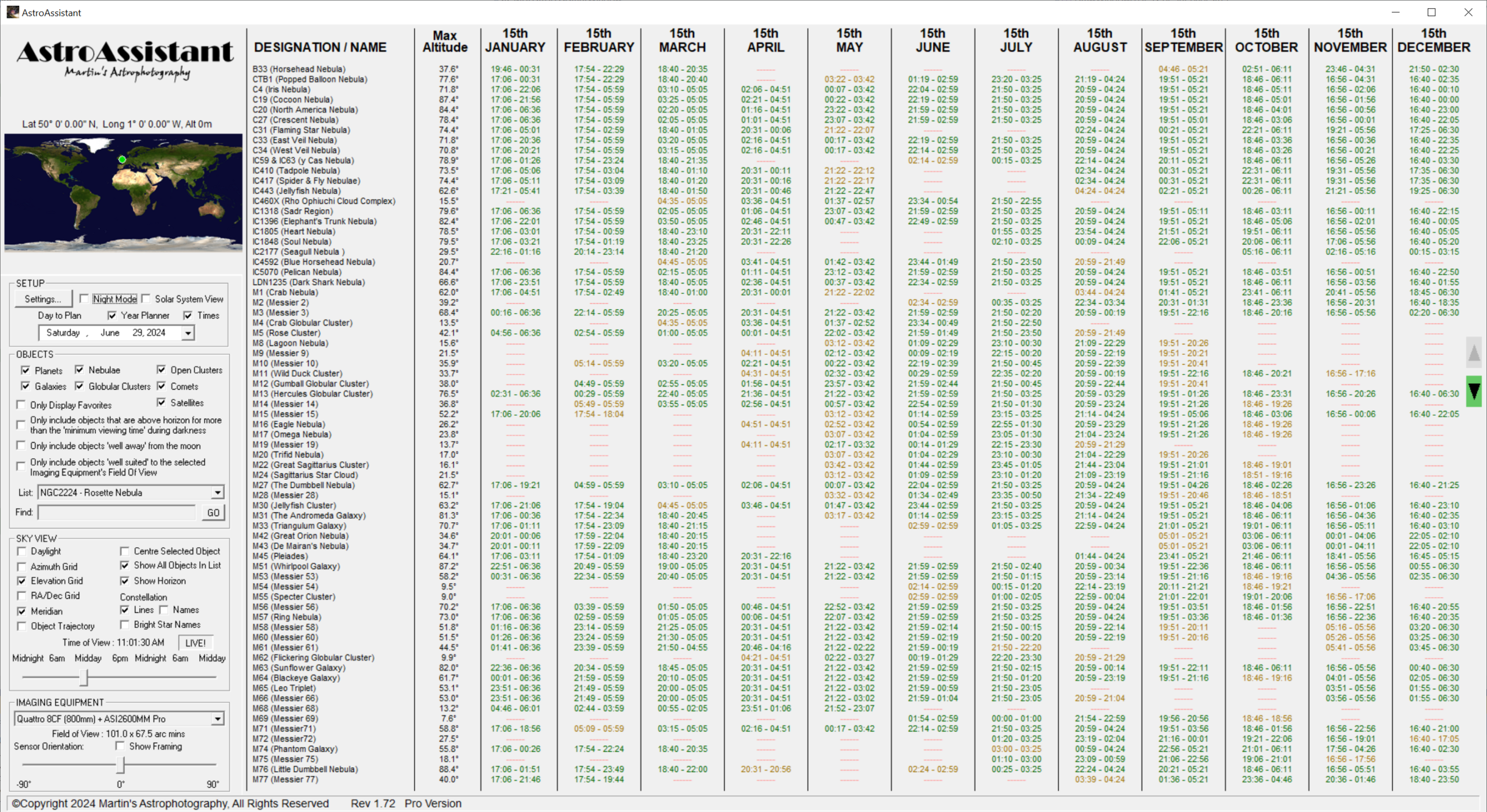
Year Planner (showing visibility times)
Hardware and Software Requirements
AstroAssistant is written for a PC running Windows 10 or later.
The application itself requires less then 10MB of hard disk space. If you choose to also download the object image database (highly recommended) then you will need about 1GB of additional hard disk space.
Internet access is required for the ‘Pro’ version so that it can download Comet data and Satellite data.
Download the ‘Standard’ Version of AstroAssistant
To download the Standard Version of AstroAssistant, for free, just click the button below. Note that this download does not include the object image database, which is also free but which you need to download separately (see link below). Further tips on installing AstroAssistant are provided lower down on this page.
Object Image Database
To download the Object Image Database, which is free of charge, please click the DropBox link below. It is highly recommended to download this as well as the app itself. If you do not do so, you will need to build up your own set of images….Since there are more than 150 targets in the initial object database, this will be a lot of work (it took me years to prepare!). Special thanks go out to everyone who kindly allowed me to use their imagery in the database, including Adam Block (University of Arizona) and Craig Stocks (Utah Desert Remote Observatory), plus others.
A single ZIP file will be downloaded which you need to be placed in the following folder (after installing the application) and then un-zip:
C:\ProgramData\Martin’s Astrophotography\AstroAssistant\OBJECT DATABASE\OBJECT IMAGES
Installation Tips
Please follow the steps below to install AstroAssistant:
- Download the Standard version by clicking the button above. This will download an installer file called AstroAssistant.msi
- Download the Object Image Database (ZIP file) using the DropBox link above
- Double-click the AstroAssistant.msi file and follow the instructions to install the application
- You will be asked if you wish to proceed as an Administrator – Click ‘Yes‘ to confirm
- If you receive any warnings about un-trusted software, click ‘more‘… then click ‘run anyway‘.
- After installation, move the Object Image Database ZIP file to the folder
C:\ProgramData\Martin’s Astrophotography\AstroAssistant\OBJECT DATABASE\OBJECT IMAGES and then un-ZIP it there. - You can then run AstroAssistant using the icon that should be on the desktop.
- If while using AstroAssistant you see a warning saying that it cannot save settings, then please follow these additional steps:
- Open Windows Explorer, select View | Options, then select the View tab. Click on the “Show hidden files, folder and drives” button. Click ‘OK’
- Open the folder C:\ProgramData and look for the Martin’s Astrophotography sub-folder
- Right-Click on the Martin’s Astrophotography folder, left-click on Properties and then select the Security tab. Click Edit…
- Select Users under ‘Group or user names’ and then tick ‘Full control’ and click ‘Apply’ then ‘OK’
The ‘Pro’ Version
Once you have downloaded and installed the Standard version, you may wish to upgrade it to the Pro Version. This is available via a one-time purchase of a permanent license, and it enables the additional features below:
- Interactive control of your Telescope/Mount (via ASCOM)
- Display where your telescope is pointing
- Adjust pointing manually using N, S, E, W buttons at an adjustable rate
- Slew to any object
- Create Sync points (equivalent to Star Alignment)
- Find the ‘Home’ position (for mounts that support this feature, such as the ZWO AM3 and AM5)
- Comets
- Download a database of all known comets from the web.
- See when comets are likely to be at their brightest.
- Slew your telescope to a comet.
- Satellites
- Choose from a list of satellite groups or name the satellite you want
- Load the latest satellite ephemeris data from the web.
- View satellite positions and trajectories on the sky view – live or in the future
- Track a Satellite with your telescope (great for photographing the International Space Station!)
How to Purchase the ‘Pro’ Version
To purchase the ‘Pro’ Version of AstroAssistant, first install and run the Standard Version. Then, in the application, click on the Settings… button. At the bottom right corner of the Settings Dialog you will find an ‘Upgrade to the Pro Version‘ button. When you click this it will provide you with a Registration ID that you can ‘Copy to Clipboard‘. Once you have your Registration ID, click the button below to purchase the Pro Version license. You will be asked to enter your Registration ID, which you can simply paste in (using Ctrl-V). Once your purchase is completed you will be sent a License Key to enter (usually within 24 hours). Enter the License Key into the ‘Upgrade to the Pro Version’ dialog and the Pro Version features will be permanently enabled!
Frequently Asked Questions
Q: Can I use my own images in the database?
A: Yes! You will need to save your image into a specific folder in .bmp format with prefix matching the object designation (e.g. M42.bmp). For the framing to work correctly you will need to enter the Angular Width of your in arcminutes into the object database entry for the object (in the Settings Dialog). Finally, don’t forget to set the credit text to give yourself proper credit for your hard work!!
Q: Can I move the software from one PC to another?
A: The Standard version can be installed over and over on different PCs with no restriction. The ‘Pro’ version license is linked to your hardware and system configuration, so if you need to move it you will need to get in touch and request a new license for the new PC. This will be provided on trust, but at the discretion of Martin’s Astrophotography.



How to Get In Touch with Martin
If you are having problems or just want to give some feedback or suggestions for improvements, please email Martin at: